Learning Flask
Web servers, WSGI servers and web applications
The heirarchy of how web requests from browsers reach our Flask web application is as follows.
Client sends Request ↔ Web server (NGINX, Apache) ↔ WSGI server (Gunicorn) ↔ Flask web app
Earlier, without WSGI it used to be the case the when the user chose a python web framework they were also tied to use a specific web server. They could not switch between servers. WSGI was created to solve this problem as the common gateway between web servers and python web applications.
Here is how a request-response cycle looks like:
-
Request:
Client sends a HTTP request to web server. Server receives this and send raw data to WSGI server. The WSGI server packages the raw data in the form of a python dictionary and sends it to our Flask app. The flask app matches the URL with the routes we have configured and starts executing the corresponding function.
-
Response:
Our Flask app returns the status code and repsonse body data to the WSGI server. The WSGI server packages our response body into a legitimate HTTP response and forward to web server. The webserver adds its server specific headers and sends the data packets over the internet.
URL processors vs URL params (also Query params v/s Path params)
URL parameters is any data passed to the web app using URL. URL parameters can be Query parameters or path parameters.
Path parameters passed as part of the URL path.
Query parameters are passed as key=value pairs with a “?” separating the path and query parameters.
URL Processor refers to any code on the web app side that handles data passed on in the URLs.
#--------------------
# Path URL parameters
#--------------------

# Getting a string and displaying a string
@app.route("/hello/<name>")
def hello(name):
    return f"Hello {name}!"

# Getting a string but wanting it to behave like numbers
@app.route("/add_wrong/<num1>/<num2>")
def add_wrong(num1, num2):
    return f"{num1} + {num2} = {num1 + num2}" # For num1 = 20 and num2 = 30, this returns 2030.

# Getting path params as int and not as string
@app.route("/add/<int:num1>/<int:num2>")
def add(num1, num2):
    return f"{num1} + {num2} = {num1 + num2}" # Correct sum of 20 + 30 = 50 is shown.

#--------------------
# Query URL parameters
#--------------------
@app.route("/login")
def handle_params():
    username = request.args.get("username")
    password = request.args.get("password")

    return f"Username: {username} <br>Password: {password}"
GET vs POST request in HTTP
Flask functions by default handle only GET requests. If a POST request is made from the browser to a function handling only GET requests, an error will be returned to the broser. In fact, control never even reaches the corresponding py function in our web app.
#------------------------------------------------------------
# GET vs POST request and handling them separately in flask
#------------------------------------------------------------

# Configure method to allow both flask GET and POST methods
@app.route("/getandpost", methods = ["GET", "POST"])
def getandpost():
    if request.method == "GET":
        return "GET method used."
    elif request.method == "POST":
        return "POST method used."
    else:
        return "This message will never be returned."
Specifying status codes in response
#--------------------
# Returning status codes
#--------------------

# Directly in return statement
@app.route("/get202status")
def get202status():
    return "get200status() method successfully called.", 202

# Using make_response()
@app.route("/get202statuswithmakeresponse")
def get202statuswithmakeresponse():
    response = make_response()

    response.status_code = 202
    response.data = "get202statuswithmakresponse() successfully called"
    response.content_type = "text/customkumartext" #!!!!

    return response
Dynamically alter HTML using Jinja templates
Flask using the Jinja templating language in order to alter the HTML served to browsers based on python code.
Passing list to HTML and using control structures
# py

# Pass list to HTML
@app.route("/displaylist")
def displayList_fun():
    mylist = [10, 20, 30, 40, 50]
    return render_template("displaylist_template.html", mylist = mylist)
<!-- html -->

<body>
    <h1>Jinja variables: Lists</h1>
    <p>The below List is rendered using Jinja variables:</p>

    <ul>
        {%for item in mylist%}

            <li {%if item == 20 %} style = "color: red" {%endif%}>
                {{ item }}
            </li>

        {%endfor%}
    </ul>
</body>
Inheriting templates
Certain sections like the navigation bar and footer are present in every single web page. In order to avoid duplicating this HTML code we can create a base template and inherit from it.
Here, the home.html that serves the “/” url and displaylist_template.html that serves the “displaylist” url inherit from the base.html file. app.py remains unchanged.
# app.py

from flask import Flask, render_template

app = Flask(__name__, template_folder="templates") #!

# --------------------------------------------------
# Manipulating HTML templates using Jinja
# --------------------------------------------------

# Pass strings to HTML
@app.route("/")
def index():
    return render_template("home.html", hello_str = "Hello", world_str = "World")

# Pass list to HTML
@app.route("/displaylist")
def displayList_fun():
    mylist = [10, 20, 30, 40, 50]
    return render_template("displaylist_template.html", mylist = mylist)
<!-- base.html -->

<!DOCTYPE html>
<html lang="en">
<head>
    <meta charset="UTF-8">
    <meta name="viewport" content="width=device-width, initial-scale=1.0">
    <title> {%block title%}Default value{%endblock%} </title>
</head>
<body>

    <p>This is from base.html and will always be present here.</p>

    {%block content%}

    {%endblock%}

</body>
</html>
<!-- home.html -->

 {%extends "base.html" %}

{%block title%} Home page {%endblock%}

{%block content%}
<h1>Jinja variables</h1>
<p>The below text is rendered using Jinja variables:</p>
<p>{{hello_str}} {{world_str}} </p>

{%endblock%}
<!-- displaylist.html -->

 {%extends "base.html"%}

{%block title%} Display list {%endblock%}

{%block content%}

<h1>Jinja variables: Lists</h1>
<p>The below List is rendered using Jinja variables:</p>

<ul>

    {%for item in mylist%}

        <li {%if item == 20 %} style = "color: red" {%endif%}>
            {{ item }}
        </li>

    {%endfor%}

</ul>

{%endblock%}
Jinja filters
Filters manipulate data in ways we want. For example passing a string through the “upper” filter using gives back the mystring in upper case.
Filters can be both predefined and custom defined.
<!-- home.html -->

<!-- Built in filters -->
<p>{{(hello_str ~ " " ~ world_str) | upper}}</p>
<p>{{(hello_str ~ " " ~ world_str) | lower}}</p>
<p>{{(hello_str ~ " " ~ world_str) | reverse}}</p>
<p>{{(hello_str ~ " " ~ world_str) | wordcount}}</p>

<!-- Custom filter -->
<p>{{(hello_str ~ " " ~ world_str) | title_case}}</p>
# app.py

# --------------------------------------------------
# Custom filters
# --------------------------------------------------

@app.template_filter()
def title_case(s: str):
    newstring = ""
    for index, c in enumerate(s):
        if index % 2 == 0:
            newstring += c.upper()
        else:
            newstring += c.lower()

    return newstring
Dynamic URL and Redirection
The URL for a page can also be dynamically assigned instead of being statically assigned. That is, consider a function index() serving home.tml initially given the static url “/”. Then, for whatever the reason, we need to change the url to “/index”. In this case, any other HTML referring to “/” with the intent of getting home.html will now have a broken link. To avoid this we can create dynamic links.
We can also redirect a user wanting to visit “/” with the intent of getting hold of home.html to “/index”.
-
Dynamic URL using url_for()
The below HTML code will always correctly refer to the displayList_fun that renders displaylist_template.html irrespective of how the route of displayList_fun is changed. It could be “/displaylist” or “/displaylistnew”. The link to displaylist_template.html in home.html will always point to the correct one.
 # app.py

 # Pass list to HTML
 @app.route("/displaylist")
 def displayList_fun():
     mylist = [10, 20, 30, 40, 50]
     return render_template("displaylist_template.html", mylist = mylist)
<!-- home.html linking to /displaylist --> <!-- Dynamic link to displaylist_template.html being served by displaylist() py function in app.py--> <a href="{{url_for("displayList_fun")}}">Click here to navigate to DisplayList site.</a> -
Redirecting from one url to another
Whenever someone tries accessing /redirect_endpoint they are redicted to /displaylist.
 @app.route("/redirect_endpoint")
 def redirect_endpoint():
     return redirect(url_for("displayList_fun"))
Managing form data sent via POST
We create a form in html. In the current code example, the same function index() handles both get and post requests to “/” path. What happens is that when the browser sends a GET request the server returns the index.html file that has the form data including fields for username and password. Then, when the user click on submit, the browser sends a POST request with the username and password included in the body. The server app.py then accesses this username-password combo and returns a success/failure message.
<!-- index.html -->

{%block content%}

<h1>GET and POST of form data to /</h1>

<form action=" {{url_for('index')}} " method = "POST">
    <input type="text" name="username" placeholder="Username"> <br>
    <input type="password" name="password" placeholder="Password"> <br>
    <input type="submit" value="Submit">
</form>

{%endblock%}
# app.py

from flask import Flask, render_template, request

app = Flask(__name__, template_folder="templates/video4")

@app.route("/", methods=["GET", "POST"])
def index():

    if request.method == "GET":
        return render_template("index.html")
    elif request.method == "POST":
        username = request.form.get("username")
        password = request.form.get("password")

        if username == "kumar" and password == "kumar":
            return "Success"
        else:
            return "Failure"
Handling file uploads
The file handling in our example code is handled by the py function file_upload(). The index.html has been accordingly modified to return the form required for the user to upload the file. This form also restricts the file types the user can upload to .xlsx, .xls, .csv and .txt. BUT the browser can bypass this restriction. The windows dialogue that opens for the user for example also allows the user to upload any other file to the server.
Hence, it is a common web dev practice to never trust the browser. Always validate user input. In this particular case, simply checking the file extension will not be sufficient since the user can simply upload a pdf file but just change the extension to xlsx or something similar. This will cause the web app to crash. What actually needs to be checked is this - every file type starts with a specific sequence of bytes that acts as a fingerprint. For example:
-
PDFs always start with
%PDF (25 50 44 46). -
Legacy Excel (.xls) starts with
D0 CF 11 E0. -
Modern Excel (.xlsx) is actually a zipped bundle, so it starts with
PK (50 4B 03 04).
This signature needs to be checked and only if it satisfies our requirement should the server proceed with processing the file.
In our current code example, we do not do these checks. What we do instead is assume the file uploaded in an Excel file and return the file as a pandas datagram that visualizes to the user, the contents of the uploaded file.
Eg 1: Handling txt and excel files differently
<!-- index.html -->

<h1>Upload Excel or text file</h1>

<form action="{{url_for('file_upload')}}" method="post" enctype="multipart/form-data"> <-- enctype most important part here. -->
    <input type="file" name="file" accept=".csv, .txt, .xls, .xlsx, text/plain, application/vnd.ms-excel, application/vnd.openxmlformats-officedocument.spreadsheetml.sheet" required>
    <input type="submit" value="upload file">
</form>
# app.py

@app.route("/file_upload", methods = ["POST"])
def file_upload():
    file = request.files.get("file")

    print(f"file = {file}")

    if file:
        if file.content_type == "text/plain":
            return file.read().decode()

        if file.content_type == "application/vnd.ms-excel" or file.content_type == "application/vnd.openxmlformats-officedocument.spreadsheetml.sheet" or file.content_type == ".xlsx":
            df = pd.read_excel(file)
            return df.to_html()

    return "Invalid file provided"
Eg 2: Convert Excel to CSV and directly return CSV file
<!-- index.html -->

 <h1>Convert Excel to CSV file</h1>

<form action="{{url_for('convert_to_csv')}}" method="post" enctype="multipart/form-data">
    <input type="file" name="file" accept="application/vnd.ms-excel, application/vnd.openxmlformats-officedocument.spreadsheetml.sheet" required>
    <input type="submit" value="Convert to CSV now!">
</form>
# app.py

@app.route("/convert_to_csv", methods = ["POST"])
def convert_to_csv():

    file = request.files["file"]

    if file:

        df = pd.read_excel(file)

        response = Response(
            df.to_csv(),
            mimetype='text/csv',
            headers={
                "Content-Disposition": "attachment; filename = result.csv"
            }
        )

        return response
Eg 3: Convert Excel to CSV and return in new download page
Here, we let the user upload an Excel file in index.html served on “/”. Upon submit, the convert_to_csv_with_download_page.py file is called that converts the Excel file to CSV and stores the file on the server. This method then serves download.html to the user. The download.html file has a link to call the endpoint “/download”. Upon clicking the link in the /download page, the request is received by download() py function that returns the file from the server to the browser.
<!-- index.html -->

 <h1>Convert Excel to CSV file and download from new page</h1>

<form action="{{url_for('convert_to_csv_with_download_page')}}" method="post" enctype="multipart/form-data">
    <input type="file" name="file" accept="application/vnd.ms-excel, application/vnd.openxmlformats-officedocument.spreadsheetml.sheet" required>
    <input type="submit" value="Convert to CSV now!">
</form>
# app.py

@app.route('/convert_to_csv_with_download_page', methods=["POST"])
def convert_to_csv_with_download_page():
    file = request.files.get("file")

    if file:
        script_dir = Path(__file__).parent
        output_dir = script_dir.joinpath("downloads")

        if not output_dir.exists():
            output_dir.mkdir(parents=True)

        # Clear the files already present in the directory
        for fileToDelete in output_dir.iterdir():
            if fileToDelete.is_file():
                fileToDelete.unlink()

        # Read excel file
        df = pd.read_excel(file)

        filename = f'{uuid.uuid4()}.csv'

        filepath = output_dir.joinpath(filename)

        df.to_csv(filepath)

        return render_template('download.html', filename_to_download=filename)

    else:
        return "Invalid file uploaded."
<!-- download.html -->

{%extends 'base.html'%}

{%block title%} Download {%endblock%}

{%block content%}
<h1>Convertion status</h1>

Your convertion from Excel to CSV has been successful. Click <a href="{{url_for('download', filename_to_download=filename_to_download)}}">here to download the file.</a>

{%endblock%}
# app.py

@app.route("/download/<filename_to_download>")
def download(filename_to_download):
    script_dir = Path(__file__).parent
    output_dir = script_dir.joinpath("downloads")
    filepath = output_dir.joinpath(filename_to_download)

    if filepath.exists():
        return send_from_directory(output_dir, filename_to_download, download_name='result.csv')
    else:
        return abort(404)
Eg 4: Handling POST requests of JSON from Javascript
We configure HTML with JS such that clicking a button triggers a POST request to “/handle_js_post”. The handle_js_post() in our server handles the post request along with the json data and sends back a confirmation message.
Use case: Building a chat app. When a user clicks send, the text in the text box is sent to the server via POST request and the server then forwards it to the intended recepient.
<!-- index.html -->

<h1>Sending JSON data via POST using Javascript</h1>

<button type="button" id="json_post_btn">Click here to submit JSON data to server.</button>

<script type="text/javascript">
    const json_post_btn_elem = document.getElementById('json_post_btn');
    const json_data_to_send = {greeting: 'Hey there ', name: 'Kumar!'};

    json_post_btn_elem.addEventListener(type='click', () => {
        fetch('{{url_for("handle_js_post")}}', {
            method: "POST",
            headers: {
                'Content-Type' : 'application/json; charset=utf-8'
            },
            body: JSON.stringify(json_data_to_send)
        })
        .then(response => response.json())
        .then(data => console.log(data['message']))
        .catch(error => {
            console.error("Error: ", error)
        })
    });
</script>
# app.py

@app.route("/handle_js_post", methods = ["POST"])
def handle_js_post():
    greeting = request.json.get('greeting')
    name = request.json.get('name')

    with open('downloads/js_post_data.txt', 'w') as f:
        f.write(f'{greeting} {name}')

    return jsonify({'message': 'Successfully stored the message! - Kumaravel'})
Handling static CSS and JS files
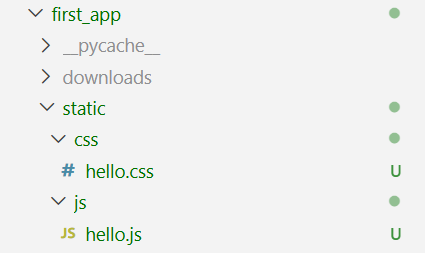
The static CSS and JS files are stored in the /static directory. This static directory path is given to the flask app similar to the template_directory. Then, as needed the CSS and JS files are referred to in the .html files. This is what the folder structure looks like:
# app.py

from flask import Flask, render_template

app = Flask(__name__, template_folder='templates/video5', static_folder='static', static_url_path='/')

@app.route('/')
def index():
    return render_template('index.html')
<!-- base.html -->

<head>
    <meta charset="UTF-8">
    <meta name="viewport" content="width=device-width, initial-scale=1.0">
    <link rel="stylesheet" href="/css/hello.css">
    <title>{%block title%} Default title {%endblock%}</title>
</head>
<!-- index.html -->

{%block content%}

<p class="special">Hello World!</p>

<script src="/js/hello.js"></script>

{%endblock%}
Session and Cookies
Session and session cookie
When the server wants to maintain a session with a client, the flask web app must make use of the inbuilt session variable. We first set a secret key in the flask web app. This secret key cryptographically signs the session key contents. The client can still view the contents of the cookie since it is only Base64 encoded. However, it cannot change the cookie contents since it has been cryptographically signed and any change made to the cookie contents will be noticed by the flask web app and the session cookie will be disregarded. This is very important because say, the session cookie has a user id used to identify the particular user. If the session cookie could be changed, the client could easily send in the user id of some other user, the server would trust it and send user X the details and personalized webpage of user Y.
# app.py

from flask import Flask, request, make_response, render_template, session, flash

app = Flask(__name__, template_folder='templates/video6', static_folder='static', static_url_path='/')
app.secret_key = 'some_key'

@app.route('/')
def index():
    return render_template('index.html', message= 'Home page!')

@app.route('/set_session_data')
def set_session_data():
    session['name'] = 'Kumaravel Rajan'
    session['other'] = 'Other data in cookie'

    return render_template('index.html', message= 'Session data set')

@app.route('/get_session_data')
def get_session_data():
    if session:
        name = session.get('name')
        other = session.get('other')
        return render_template('index.html', message= f'name = {name};; other = {other}')

    return render_template('index.html', message='No session exists yet. Create a new session instead and try again.')

@app.route('/clear_session')
def clear_session():
    session.clear()
    return render_template('index.html', message='Session cleared.')
<!-- index.html -->

{%block content%}

<h1>Message from server:</h1>

<p> {{message}} </p>

<h1>Session controls</h1>

<a href="{{url_for('index')}}">Click here to get to home page.</a><br>

<a href="{{url_for('set_session_data')}}">Click here to set session data.</a><br>

<a href="{{url_for('get_session_data')}}">Click here to get session data.</a><br>

<a href="{{url_for('clear_session')}}">Click here to clear session data.</a><br>

{%endblock%}
Custom cookies
Apart from the session cookies, we can also set custom cookies in the browser. These cookies could be used for further personalization or other purposes. Note that by default, flask sends cookies that are not the session cookie in plain text. This can be prevented however, by cryptographically signing the custom cookie with the same key used to sign the session key. This maintains integrity in the custom cookies as well.
# app.py

@app.route('/set_custom_cookie')
def set_custom_cookie():
    response = make_response(render_template('index.html', message='Custom cookie set'))
    response.set_cookie('cookie_key', 'cookie_value')
    return response

@app.route('/get_custom_cookie')
def get_custom_cookie():
    if 'cookie_key' in request.cookies:
        key = 'cookie_key'
        value = request.cookies.get(key)
        return render_template('index.html', message= f'custom cookie key: {key};; custom cookie value: {value}')

    return render_template('index.html', message='No custom cookie set. First set the cookie and then try to read it.')

@app.route('/clear_custom_cookie')
def clear_custom_cookie():
    response = make_response(render_template('index.html', message='Cleared custom cookie'))
    response.set_cookie('cookie_key', 'cookie_value', expires=0)
    return response
<!-- index.html -->

{%block content%}

<a href="{{url_for('set_custom_cookie')}}">Click here to set custom cookie.</a><br>

<a href="{{url_for('get_custom_cookie')}}">Click here to get custom cookie.</a><br>

<a href="{{url_for('clear_custom_cookie')}}">Click here to clear custom cookie.</a><br>

{%endblock%}
Flashing messages
In flask, we also have the option to set flashing messages. What this means is, at the end of request1 we can set a flashing message and the next request, request2 (and only this next request) can access the flashing message and use templates to display the message. These could be used to display messages to the users like ‘Login successful’ or ‘Login failed’ and so on.
# app.py

@app.route('/login', methods = ['GET', 'POST'])
def login():
    if request.method == 'GET':
        return render_template('login.html')
    elif request.method == 'POST':
        if request.form.get('username') == 'kumar' and request.form.get('password') == 'kumar':
            flash('Successful login (sent via flash)!')
            return render_template('index.html', message = 'Successful login (sent via index.html message)')
        else:
            flash('Login failed! (sent via flash)')
            return render_template('index.html', message= 'Login failed (sent via index.html message)')
<!-- NOTE: base.html -->

<body>

    <h1>Flash message (if any)</h1>


    {%with messages= get_flashed_messages()%}

        {%if messages%}

            {%for message in messages%}

                <ul>
                    <li>{{message}}</li>
                </ul>

            {%endfor%}

        {%endif%}

    {%endwith%}

    {%block content%}


    {%endblock%}

</body>